First of all, you can create one or more fiscal positions on the INVOICES configuration page. Each fiscal position consists of a title, a header, and a logo. When issuing an invoice, you can choose which position to use, so that the invoice contains the data for that position.
Once you have configured your fiscal headers, ZaK allows you to issue invoices, whether linked to a reservation or NOT linked to a reservation (e.g., for a passing bill). Let's see how to proceed in both cases!
1. Invoice linked to a reservation
In this case, you need to start from the details of the reservation for which you want to issue the invoice.
Click on the “INVOICES” box, choose which guest to invoice, which tax position to use (if you have multiple headings), and what type of document you want to issue. Then click on “CREATE” to continue:
Once you have chosen the document holder, all fields will be automatically pre-filled (with the guest's details that you have already registered, but which can still be edited from the “CONFIGURATION” tab), and you will be taken to the SERVICES/PAYMENTS tab:
From here, you can select which services or payments to include in the invoice, or add others (even items not included in the reservation).
The ADDITIONAL TEXT tab allows you (as you might expect) to add customizable text that is displayed at the bottom of the invoice issued:
2. Invoice NOT linked to a reservation
You can also issue an invoice that is not linked to any reservation. For example, for the sale of a product or the provision of a service not related to a specific reservation. In this case, proceed from the following section by clicking on the button at the top right “
Add a new document”:
↳ Useful link: ZaK > Finance > Documents
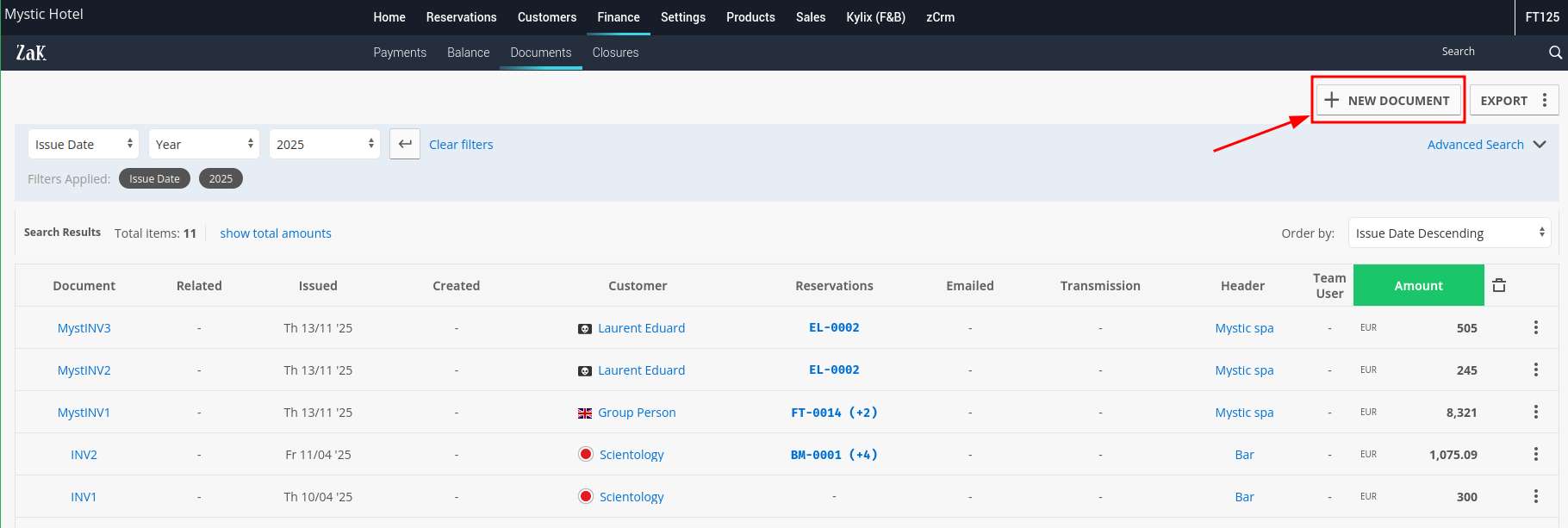
You can now proceed with the normal issuance of a document.
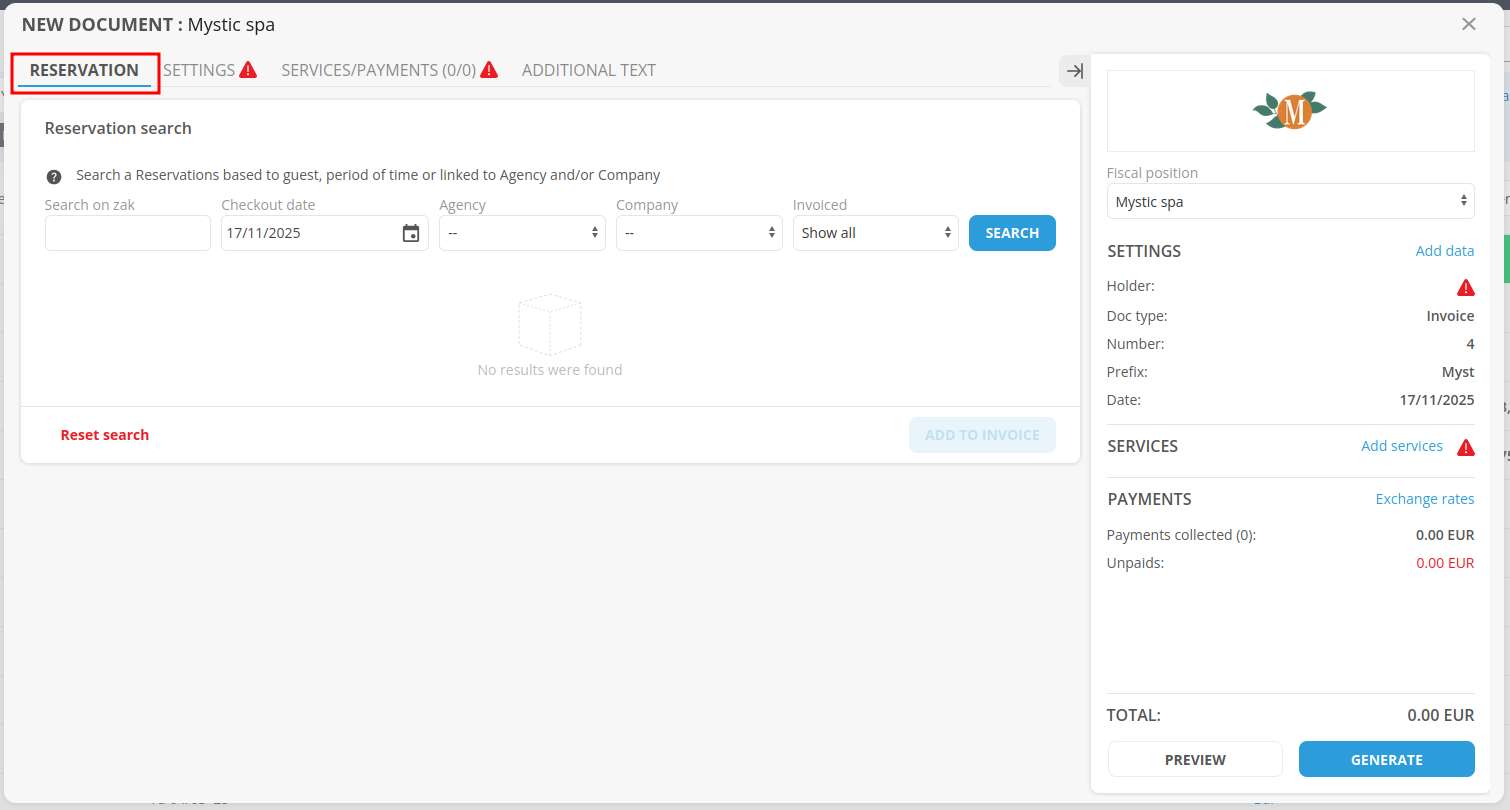
The document issuance form opens automatically on the RESERVATION tab to search for and select one or more reservations to be accounted for in the document:
Alternatively, you can go directly to the SETTINGS tab to enter the header to be used, the type of document (invoice in this case), and the holder, which can be a customer, an agency, or a corporate.
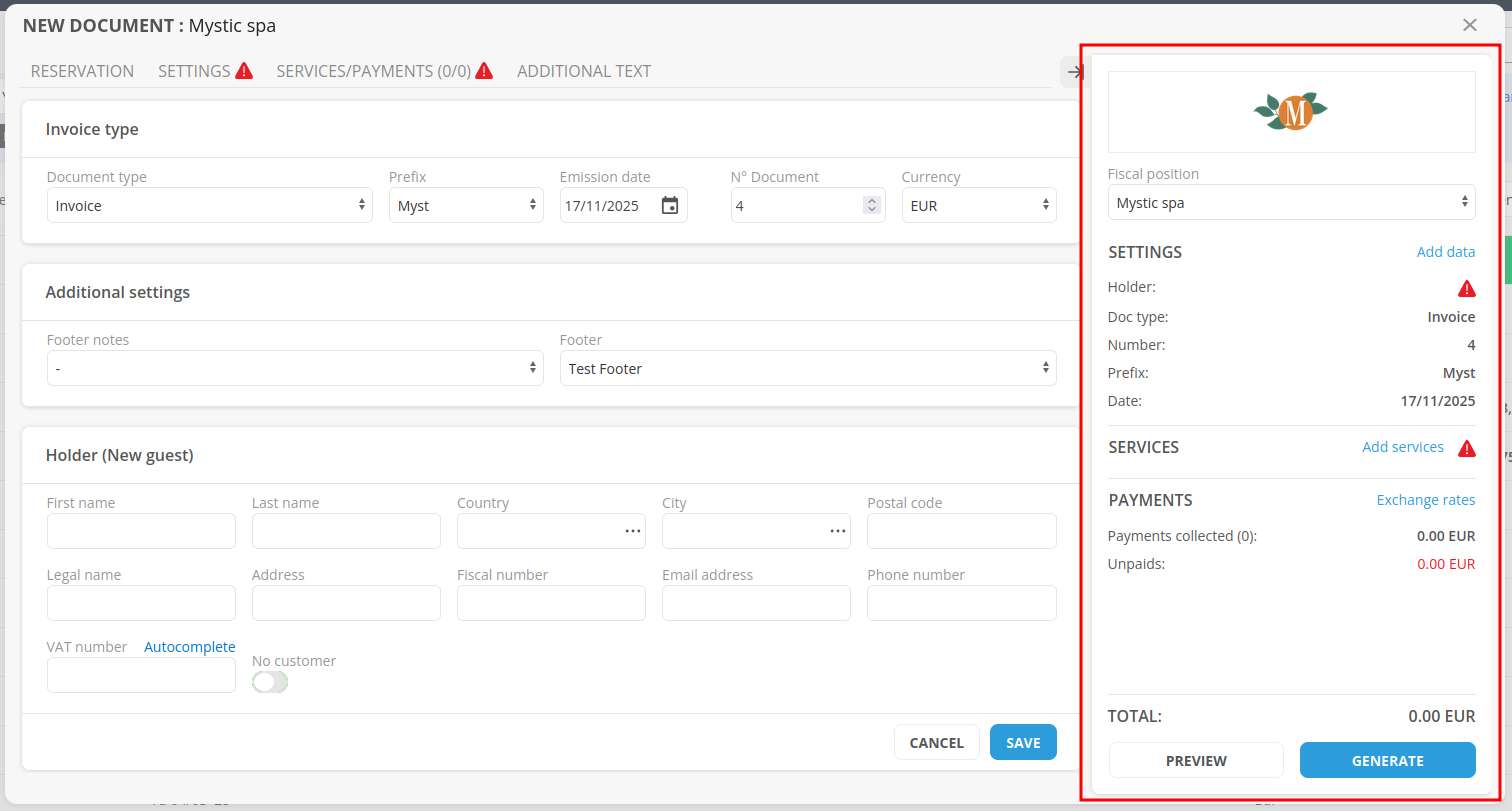
In the “Invoice type” fields, the system displays the type of document to be issued, the prefix to be used, today's date, and the invoice number.
The number following the last issue of the current year is automatically suggested.
All of this data can be edited manually:
In the case of an invoice NOT linked to a reservation, you can create and save the holder as a guest using the dedicated button:
At any point during the document creation and issuance process, you can check the right-hand side column for a summary updated in real time with the data of the document being issued.
From that same column, you can preview the document or issue it directly: